


MacBook Stage Light: 7 Easy Ways to Fix This Annoying Screen Issue

Introduction
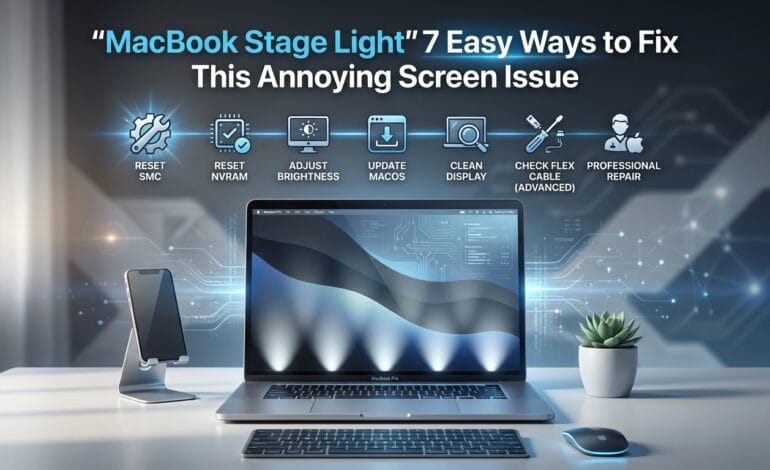
If you’ve noticed uneven lighting, bright spots, or shadow-like patches at the bottom of your screen, you might be dealing with the MacBook stage light issue. This problem is more common than you think, especially in older MacBook models, and it can seriously affect your viewing experience.
The good news? In many cases, you don’t need to replace your entire laptop. There are several practical fixes—some simple, some technical—that can help you solve the macbook stage light problem.
In this guide, we’ll walk you through 7 easy ways to fix it, explain what causes the issue, and help you decide whether repair or replacement is the best option.
Table of contents
- Introduction
- What Is the MacBook Stage Light Issue?
- Signs You Have a MacBook Stage Light Problem
- 7 Easy Ways to Fix MacBook Stage Light Issue
- Which MacBook Models Are Affected?
- DIY vs Professional Repair: What Should You Choose?
- How Much Does It Cost to Fix MacBook Stage Light?
- How to Prevent MacBook Stage Light Issue
- When Should You Replace Instead of Repair?
- Frequently Asked Questions (FAQs)
- Conclusion
What Is the MacBook Stage Light Issue?
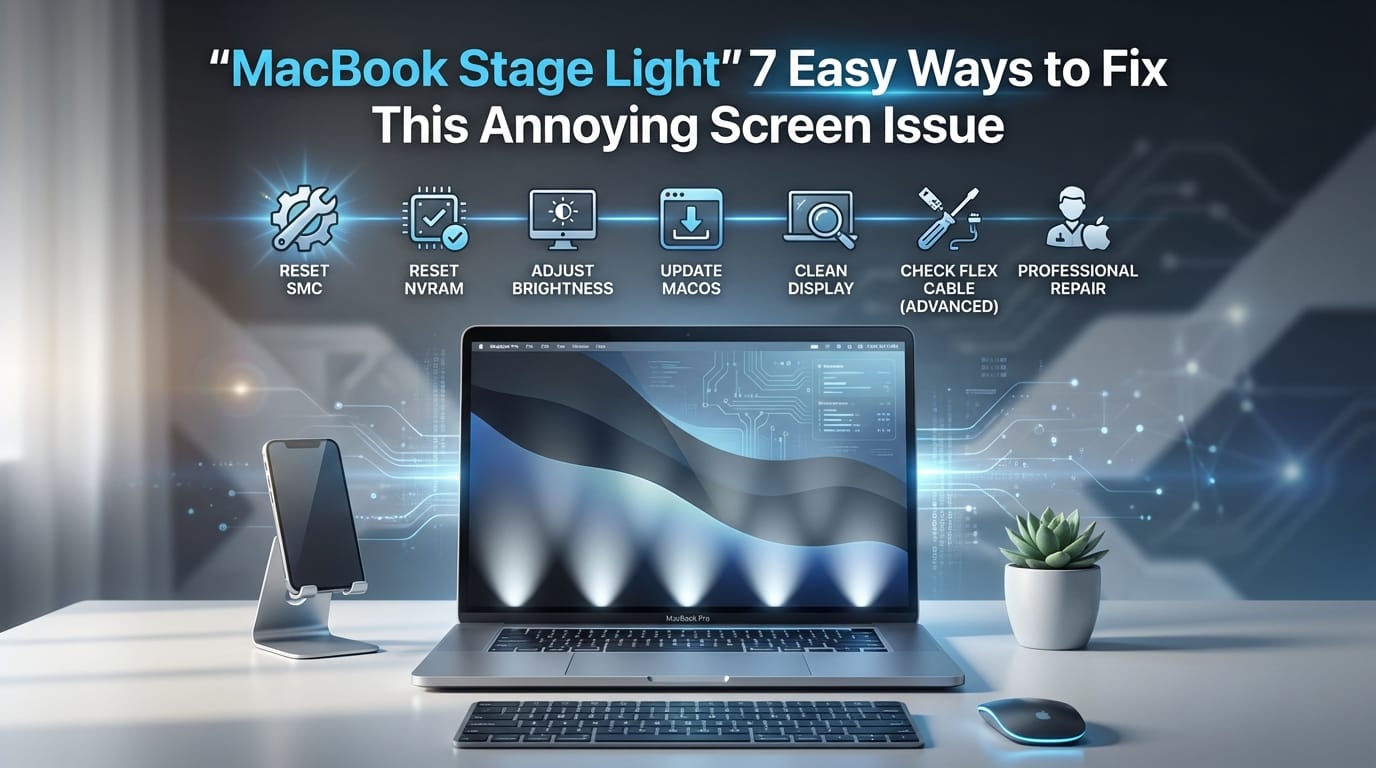
The macbook stage light issue refers to uneven backlighting on your screen, usually visible at the bottom edge. It often looks like:
- Bright patches (like a stage spotlight)
- Dark shadows along the screen
- Flickering brightness
- Uneven light distribution
Why Does It Happen?
This problem is typically caused by:
- Worn-out display flex cables
- Backlight damage
- Heat and wear over time
- Manufacturing defects (especially in certain models)
Signs You Have a MacBook Stage Light Problem
Before fixing it, confirm the issue. Here are common symptoms:
- Bright “spotlight” effect at the bottom
- Screen brightness changes randomly
- Flickering when adjusting screen angle
- Dark bars or uneven lighting
If you notice these signs, your macbook stage light issue is likely real.
7 Easy Ways to Fix MacBook Stage Light Issue
1. Restart Your MacBook
It sounds basic, but sometimes the issue is software-related.
Steps:
- Click Apple menu
- Select Restart
- Wait for reboot
👉 If the issue disappears, it was likely a temporary glitch.
2. Reset NVRAM/PRAM
This can fix display-related settings.
Steps:
- Turn off your MacBook
- Press and hold:
- Option + Command + P + R
- Keep holding for 20 seconds
This resets screen brightness and display configs.
3. Adjust Display Settings
Sometimes incorrect display calibration causes uneven lighting.
Try this:
- Go to System Settings → Display
- Adjust brightness manually
- Turn off auto brightness
- Disable True Tone
This won’t fix hardware issues but can reduce the effect.
4. Check for macOS Updates
Software bugs can sometimes cause display issues.
Steps:
- Open System Settings
- Click Software Update
- Install latest version
Keeping your system updated ensures better compatibility.
5. Inspect Screen Angle (Flex Cable Test)
The macbook stage light issue is often linked to the display flex cable.
Test:
- Slowly open and close the screen
- Watch if lighting changes
👉 If brightness shifts with movement, the flex cable is likely damaged.
6. Use External Monitor (Temporary Fix)
If you need a quick solution:
- Connect your MacBook to an external display
- Use it as your main screen
This won’t fix the issue but helps you keep working.
7. Professional Repair (Most Effective Solution)
If none of the above works, hardware repair is required.
Common fixes include:
- Replacing display flex cable
- Full screen replacement
- Backlight repair
💡 This is the most reliable fix for serious macbook stage light problems.
Which MacBook Models Are Affected?
The issue is more common in:
- MacBook Pro (2016–2017 models)
- MacBook Air (older versions)
This is sometimes referred to as the “Flexgate” problem, caused by fragile display cables.
DIY vs Professional Repair: What Should You Choose?
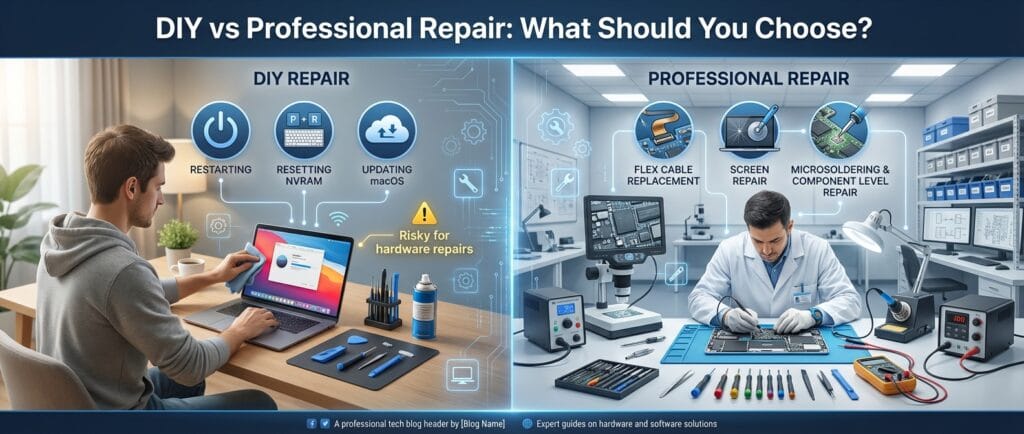
DIY Fix (Good for minor issues)
- Restarting
- Resetting NVRAM
- Updating macOS
Professional Repair (Best for hardware issues)
- Flex cable replacement
- Screen repair
⚠️ DIY hardware repair is risky unless you’re experienced.
How Much Does It Cost to Fix MacBook Stage Light?
Costs vary depending on the fix:
- Flex cable repair: $100–$300
- Full screen replacement: $300–$700
- Apple official repair: Higher cost
👉 If your MacBook is old, replacement might be more cost-effective.
How to Prevent MacBook Stage Light Issue
While not always avoidable, you can reduce risk:
- Avoid opening screen too aggressively
- Keep your MacBook cool
- Use proper carrying cases
- Avoid pressure on screen
Taking care of your device increases its lifespan.
When Should You Replace Instead of Repair?
Consider replacement if:
- Repair cost is too high
- MacBook is 5+ years old
- Performance is already slow
Sometimes investing in a new device is smarter long-term.
Frequently Asked Questions (FAQs)
It is a screen problem where uneven lighting appears, usually at the bottom of the display.
Yes, minor issues can be fixed with resets or updates, but hardware problems need professional repair.
Most of the time, yes. It’s usually caused by a damaged flex cable or backlight.
Only if your device is under warranty or covered by a repair program.
Yes, it often worsens as the cable continues to wear out.
Yes, but it may affect visibility and overall experience.
Check for uneven lighting, especially when adjusting screen angle.
Conclusion
The macbook stage light issue can be frustrating, but it’s not the end of your device. In many cases, simple fixes like resetting settings or updating software can help. However, if the issue is hardware-related, professional repair is the best solution.
The key takeaway:
👉 Diagnose the problem early and choose the right fix—this can save you both time and money.
If your MacBook is still in good condition, repairing it is often worth it. Otherwise, consider upgrading for a better long-term experience.