


Table of contents
The PlayStation 5 (PS5) is one of the most powerful gaming consoles available today. With lightning-fast load times, stunning graphics, and smooth gameplay, it promises an unmatched gaming experience. However, even the PS5 can experience performance issues, from slow game loading to lag during gameplay.
If you’ve been wondering how to fix PS5 performance issues, this guide will walk you through practical, easy-to-follow steps to get your console running smoothly again. Whether you’re a casual gamer or a dedicated PlayStation enthusiast, this article will help you troubleshoot and enhance your PS5’s performance.
Common PS5 Performance Issues
Before learning how to fix PS5 performance issues, it’s important to identify the common problems users face. Knowing the root cause will make troubleshooting more effective.
1. Slow Game Load Times
- Games taking longer than usual to start.
- Freezing or stuttering during gameplay.
2. Frame Rate Drops
- Sudden dips in FPS (frames per second).
- Lag during high-intensity graphics scenes.
3. Overheating
- Console gets hot quickly.
- Fans running loudly or constantly.
4. Software Glitches
- Apps crashing or freezing.
- System updates failing to install.
5. Storage Issues
- Full SSD or fragmented data.
- Delays when switching between games or apps.
Why PS5 Performance Issues Happen
Understanding why your PS5 is slowing down will help you fix it more efficiently. Some common causes include:
- Outdated system software: Missing updates can lead to bugs and reduced performance.
- Full or corrupted storage: A nearly full SSD or corrupted files can slow down load times.
- Overheating: Dust buildup or poor ventilation can cause throttling.
- Background downloads: Games or updates downloading while playing can affect speed.
- Hardware issues: Rarely, faulty hardware can cause persistent problems.
How to Fix PS5 Performance Issues: Step-by-Step Guide

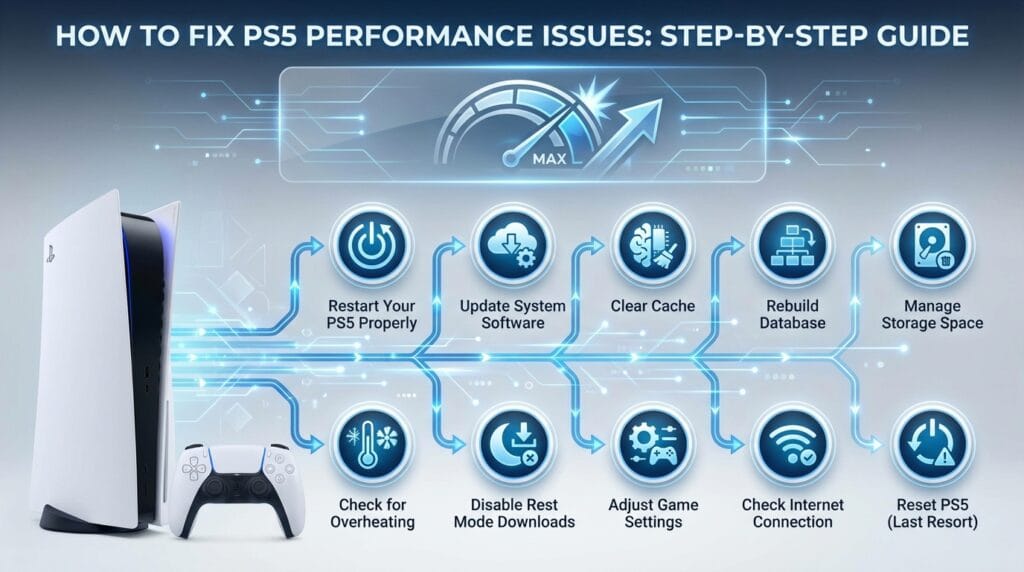
Here’s a detailed, practical guide on how to fix PS5 performance issues and boost game speed.
1. Restart Your PS5 Properly
A simple restart can solve many performance issues.
Steps:
- Press the PS button on your controller.
- Navigate to Power > Restart PS5.
- Wait for the console to reboot.
Tip: Avoid unplugging your PS5 directly from the power source, as it can corrupt system files.
2. Update System Software
Outdated software can lead to crashes, slow loading, or freezing.
Steps:
- Go to Settings > System > System Software > System Software Update and Settings.
- Click Update System Software.
- Follow the on-screen instructions.
Why it helps: Updates often include performance improvements, bug fixes, and optimized memory management.
3. Clear Cache
Clearing the cache removes temporary files that may slow down your PS5.
Steps:
- Turn off your PS5 completely.
- Press and hold the power button until you hear two beeps (Safe Mode).
- Connect your controller via USB and select Clear Cache and Rebuild Database > Clear System Software Cache.
4. Rebuild Database
Rebuilding the database can fix corrupted files, improve load times, and reduce lag.
Steps:
- Boot your PS5 into Safe Mode (hold power button until two beeps).
- Connect your controller via USB.
- Select Rebuild Database.
- Wait for the process to finish.
Benefits:
- Fixes corrupted game files.
- Improves system responsiveness.
- Reduces crashes during gameplay.
5. Manage Storage Space
A full SSD can slow down your PS5 significantly.
Tips to Optimize Storage:
- Delete unused games or apps.
- Move games to an external SSD.
- Keep at least 10–15% of your SSD free for system performance.
Steps:
- Go to Settings > Storage > Console Storage.
- Review your installed games and apps.
- Delete or move unnecessary files.
LSI Keywords: PS5 storage optimization, free up PS5 SSD, improve PS5 load time.
6. Check for Overheating
Overheating can throttle your PS5, causing lag or crashes.
How to prevent overheating:
- Keep your PS5 in a well-ventilated area.
- Avoid covering vents or placing it inside closed cabinets.
- Clean dust from vents using compressed air.
- Avoid playing for extended periods without breaks.
Tip: Some games are more demanding and can heat the console faster. Using a cooling stand can help.
7. Disable Rest Mode Downloads
While Rest Mode is convenient, downloads and updates running in the background can slow down performance.
Steps:
- Go to Settings > System > Power Saving > Features Available in Rest Mode.
- Turn off Stay Connected to the Internet.
- Pause large downloads while gaming.
8. Adjust Game Settings
Some games allow you to tweak performance settings:
- Lower graphics settings or resolution.
- Turn off motion blur or HDR if experiencing lag.
- Enable Performance Mode (if available) in-game.
Why this helps: Reduces CPU/GPU load and improves frame rates.
9. Check Internet Connection
Lag in online games can feel like a performance issue. Test your connection:
- Go to Settings > Network > Connection Status.
- Run Test Internet Connection.
- Use a wired Ethernet connection for more stability.
10. Reset PS5 (Last Resort)
If none of the above fixes work, a factory reset can restore performance.
Steps:
- Backup your data to external storage or cloud.
- Go to Settings > System > System Software > Reset Options > Reset Your Console.
- Follow on-screen instructions.
Caution: This deletes all data, so use only if necessary.
Additional Tips to Boost PS5 Performance
- Keep your console firmware and game software updated.
- Use high-speed external SSDs for extra storage.
- Avoid placing PS5 near heat sources.
- Schedule regular rest periods to prevent overheating.
- Limit the number of apps running in the background.
Related Keywords: PS5 lag fix, speed up PS5, PS5 slow loading fix.
Signs That Your PS5 Needs Maintenance
Even if your console seems fine, some signs indicate it may need attention:
- Fans running loudly for no reason.
- Games take longer to load than usual.
- Frame rates drop in new games.
- Unexpected crashes or freezing.
- System updates failing repeatedly.
Addressing these issues early can prevent permanent damage and improve your gaming experience.
Frequently Asked Questions (FAQs)
Check if the console feels hot, the fan runs loudly, or games lag. Overheating may also trigger automatic shutdowns.
Yes. Freeing up SSD space improves load times and system responsiveness.
Rebuild once every 3–6 months or if you notice frequent lag and crashes.
Yes, a reset can solve persistent software issues but will erase all data. Backup first.
Background downloads during Rest Mode may slow gaming performance. Pausing them can help.
While it won’t increase internal SSD speed, using a high-speed external SSD improves storage management and game loading for PS5-compatible titles.
Regular updates, proper ventilation, storage management, and occasional database rebuilds keep your PS5 running smoothly.
Conclusion
Experiencing slow load times, frame drops, or overheating on your PS5 can be frustrating, but most performance issues are easily fixable. By following these steps on how to fix PS5 performance issues, you can optimize your console, enjoy smoother gameplay, and extend the lifespan of your device.
Remember:
- Regular maintenance is key.
- Keep your software updated.
- Manage storage and ensure proper ventilation.
With these tips, your PS5 will run faster, cooler, and deliver the immersive gaming experience it was designed for.


